Short answer: nearly every custom wrap that won't show up is the file, not the car. It must be a PNG between 512×512 and 1024×1024 pixels, no larger than 1 MB, with a filename of 30 characters or fewer. If the file is fine, check the two version numbers (vehicle software 2026.26, vehicle app 4.59.0) for phone uploads, or the drive format and Wraps folder for USB. Then check you actually applied the wrap, not just uploaded it.
Find your symptom below and go straight to the fix. The file and drive rules come from Tesla's own custom-wraps documentation, not from forum guesswork.
Match the symptom to the fix
| What you see | Most likely cause | First thing to try |
|---|---|---|
| No wrap upload option in the phone app | App or car software too old | Update the app to 4.59.0+, check the car is on 2026.26+ |
| The app won't take the image | File breaks one of the four rules | Re-export as a 1024×1024 PNG under 1 MB with a short name |
| USB drive plugged in, Paint Shop lists nothing | Drive format, folder or drive contents | exFAT drive, PNGs in a top-level Wraps folder, no update files |
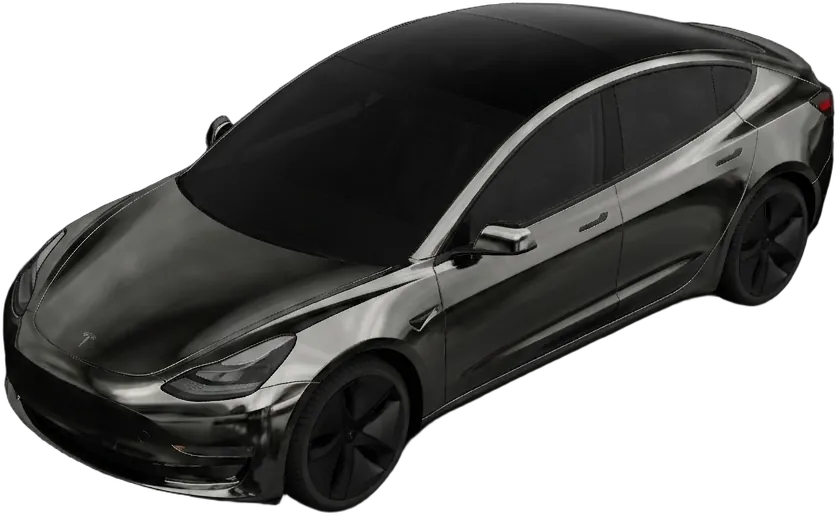
| The wrap appears but looks like a jumble | Wrong template, or not a template at all | Redesign on your model's official template |
| Upload worked, car still shows factory paint | Uploaded but never applied | Apply it in Toybox → Paint Shop → Wraps |
Each fix is explained in the sections below.
The upload option isn't in the app
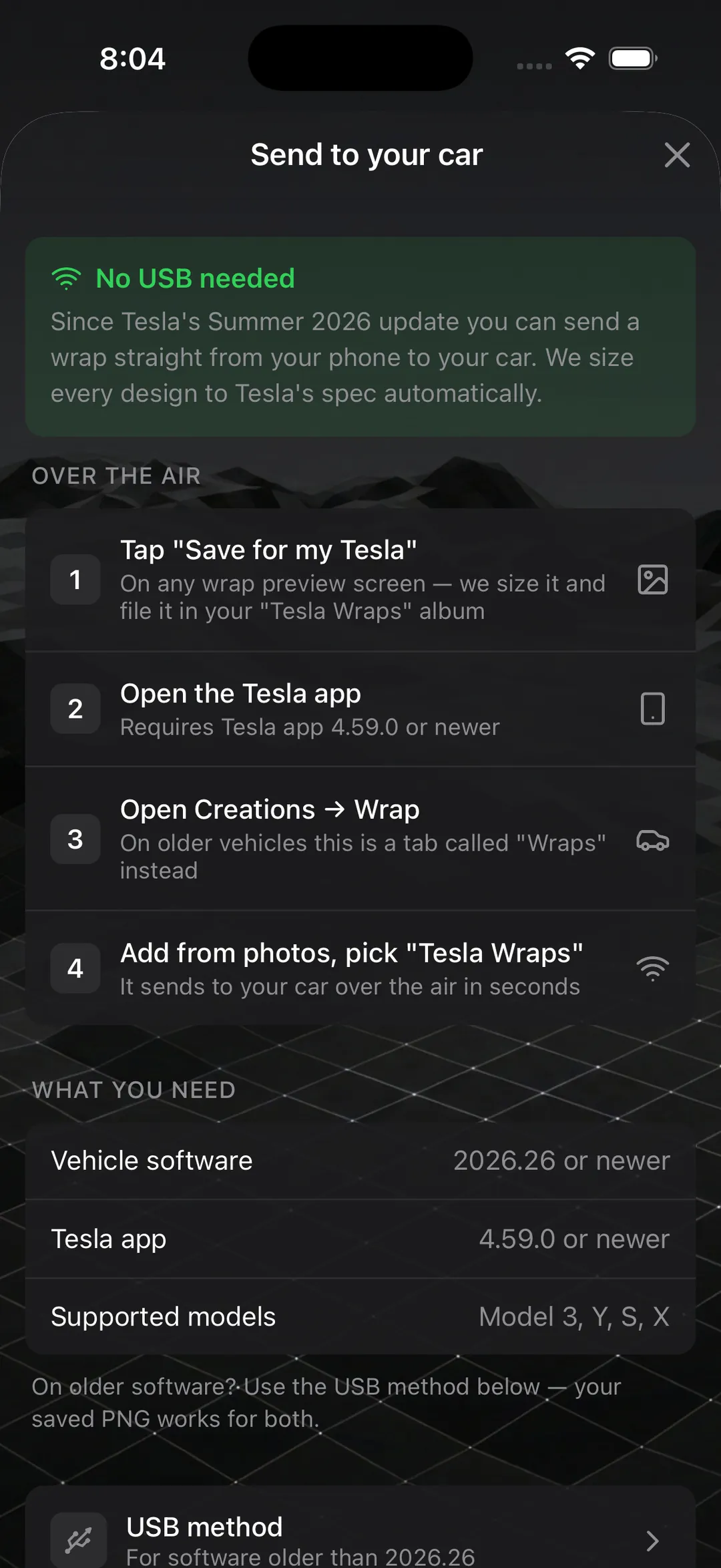
Sending a wrap from your phone needs both of these:
- Vehicle software 2026.26 or newer. The touchscreen's software screen shows which version the car is on.
- Vehicle app 4.59.0 or newer. Update it from the App Store or Google Play.
An updated car paired with an out-of-date phone app is the more common mismatch of the two.
Then look in the right place. On newer vehicles the upload lives under Creations → Wrap. Older vehicles show a tab simply called Wraps. They look nothing alike, so it's easy to decide the feature is missing when it's just somewhere else.
If your car isn't on 2026.26 yet, you haven't lost anything: the USB route below takes exactly the same file.
The file is rejected
These are Tesla's four rules:
| Rule | Limit |
|---|---|
| Format | PNG only |
| Dimensions | 512×512 to 1024×1024 pixels |
| File size | No larger than 1 MB |
| Filename | Up to 30 characters: letters, numbers, underscores, dashes and spaces |
The usual ways people break them:
A 2K or 4K export. Most design tools and AI generators save far larger than 1024 pixels by default. Resize to the template's own size, which is what Tesla recommends, and the file size usually drops under 1 MB with it.
A photo format wearing a PNG name. Renaming wrap.jpg or an iPhone .heic to wrap.png doesn't convert it. Export or re-save it as a real PNG.
A long or fussy filename. Brackets, colons, emoji and accented letters fall outside the allowed characters, and auto-added timestamps push names past 30. Midnight_Chrome_M3.png works. Wrap Export (final) 2026-09-27 18:42.png doesn't.
A full car. The car holds up to 10 wraps sent from the app and 10 from a USB drive. If you're at 10 on one source, remove one before adding another.
Nothing on the USB drive shows up
For the USB route, the drive itself has to be set up the way the car expects:
- Format it as exFAT, FAT 32, MS-DOS FAT, ext3 or ext4. NTFS isn't supported.
- Create a folder named
Wrapsat the top level of the drive, not inside another folder, and put the PNGs directly in it. - Keep map and firmware updates off that drive. Tesla calls this out specifically in its instructions.
- Check each file against the four rules above. A file that breaks one is simply left out of the list.
Then open Toybox → Paint Shop → Wraps on the touchscreen.
If the drive is right and the list is still empty, restart the touchscreen: hold both scroll buttons on the steering wheel until the screen goes black, then wait about 30 seconds for it to come back, as described in the owner's manual. It restarts the screen only, not the car.
The wrap looks scrambled
If the wrap loads but the colours land on the wrong panels, or the car looks like it's wearing confetti, the file isn't mapped to your car's template.
The PNG isn't a picture of a car. It's a flat texture that the car's 3D model wraps around itself, with every panel in a fixed position. Two things break that:
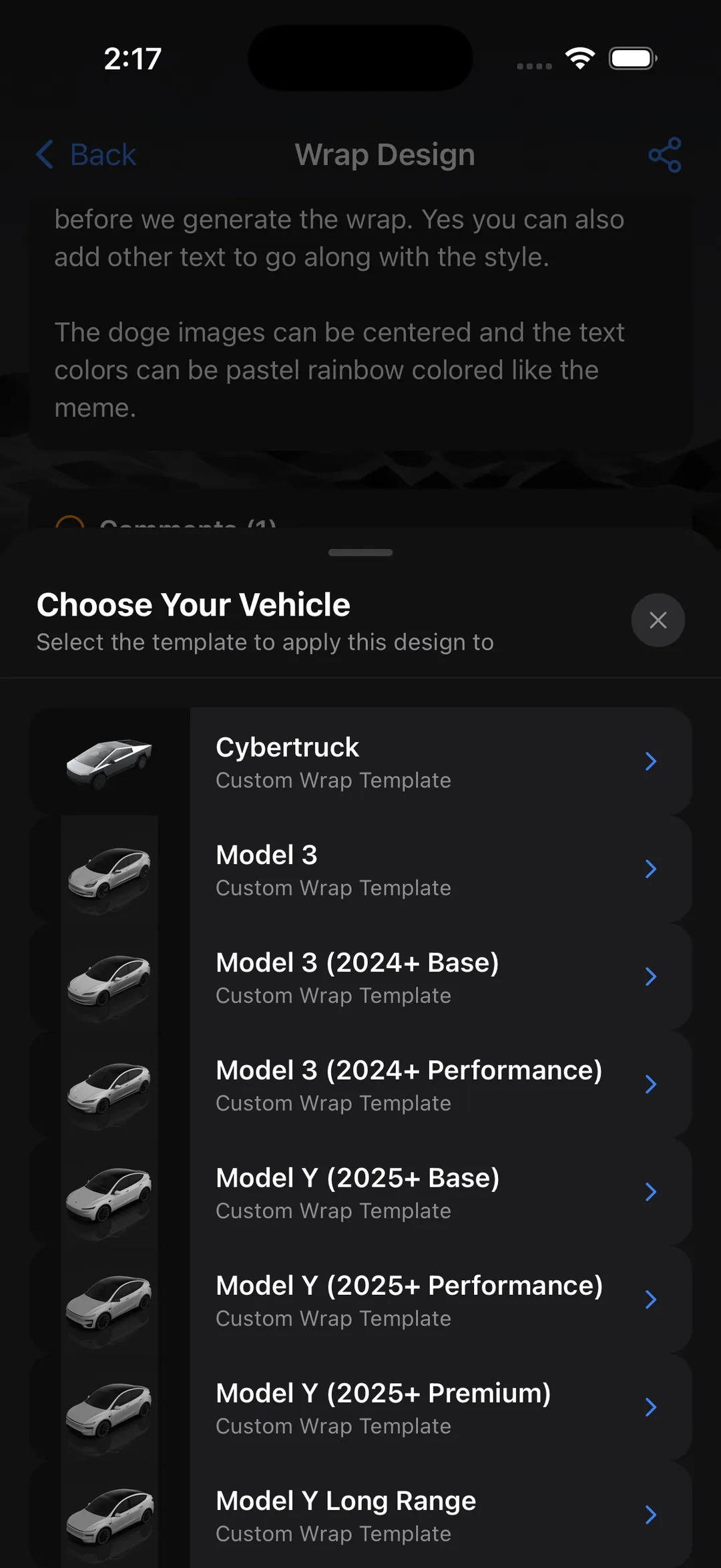
- The wrong template. Tesla publishes 12 templates, not one per model: refreshed models, Performance versions and the 2025 Model Y trims can each have their own layout. Our template guide shows which of Tesla's official templates fits your car.
- No template at all. A photo of a wrapped car, or a pattern stretched to a square, will upload happily and then render as nonsense.
The fix is to design on the correct template, or to start from a design that already is: every wrap generated in the studio or downloaded from the community gallery is painted onto the right layout for the model it was made for.
Uploaded, but nothing changed
Uploading and applying are separate steps. In the phone app, Upload & Apply Wrap puts it on the car straight away; Upload Only just stores it. If you chose the second, or uploaded over USB, apply it on the touchscreen under Toybox → Paint Shop → Wraps.
And remember what a custom wrap changes: how the car draws itself on the touchscreen and in the app. The paint on the actual car stays as it was.
Quick answers to what people ask next
Can I use a cable? Tesla documents two routes: the vehicle app over the air, and a USB drive with a Wraps folder. Plugging your phone into the car isn't one of them.
Can I do it from my computer? Not directly. Copy the PNG onto a USB drive set up as above, or send it to your phone and upload it from the vehicle app.
Do I need a USB drive at all? Not on 2026.26 with app 4.59.0 or newer. The phone upload walkthrough shows the whole flow in 35 seconds.
Where are my old USB wraps? Still in Paint Shop whenever that drive is plugged in. The app and USB each keep their own set of up to 10.
Skip the troubleshooting next time
Most of this page exists because a file came out of a general-purpose tool at the wrong size, with the wrong name, or on the wrong layout. Wraps exported from WrapStudio AI are converted to meet all four rules automatically and are already mapped to your model's template, which rules out the most common failures before you start.
Browse free designs other owners made, or describe your own in the studio. If you're still on older software, the Paint Shop USB guide covers that path step by step.